
How to Set Up a Small Business Network: A Step-by-Step Guide for Non-Techies
A network that works is boring. Nobody emails you about it. Nobody gathers around the printer at 9 a.m. trying to work out why the laptop on the third desk cannot see the shared drive. That is the goal: boring.
Setting up a small business network is less about technical wizardry than about making a handful of decisions in the right order. Get the order wrong and you end up with three routers stacked in a cupboard, a Wi-Fi dead zone over accounts, and an ethernet cable taped across the floor. Get it right and you can build the whole thing over a weekend and forget about it.
1. Map the Office Before You Buy Anything
Walk the space with a notebook. Mark where desks sit, where the printer lives, where the card machine and door camera connect, and where the internet line enters the building. That entry point is usually a back cupboard or a riser, which is the worst possible place for Wi-Fi — but a perfectly good place for a switch.
Then count devices and add room to grow:
- Laptops, desktops and monitors with network ports
- Printers, scanners, card terminals, time clocks
- VoIP handsets and conference room kit
- Security cameras, door access, thermostats, TVs
- Guest devices — phones and tablets on your Wi-Fi
Add roughly half again to whatever you count. Small offices rarely shrink. Note walls too: brick, concrete and metal shelving eat Wi-Fi signal, and knowing that now saves you guessing later.
2. The Router Is Your Front Door
For most small offices, one business-grade router does the heavy lifting: it connects to the internet, hands out IP addresses, runs the firewall, and provides VPN access for remote staff. Consumer routers will technically work, but business models tend to get security updates for longer and include features you will actually want — multiple networks, guest isolation, and central management if you add access points.
Two things to check before you buy:
- Wired throughput. If your internet line is fast, the router's ports and processing need to keep up, or the connection will feel slower than it is.
- Management. Local web interface or cloud dashboard — either is fine, as long as you can back up the configuration and check logs.
Also ask your internet provider to put their modem into bridge mode so the router handles the connection directly. Leaving both devices routing traffic (double NAT) causes odd, hard-to-diagnose problems with VPNs, video calls and remote access.
3. Switches and Cabling: The Wired Skeleton
Anything that stays in one place should be plugged in. Desks, printers, access points and cameras all perform better on a cable, and they stop competing for Wi-Fi bandwidth.
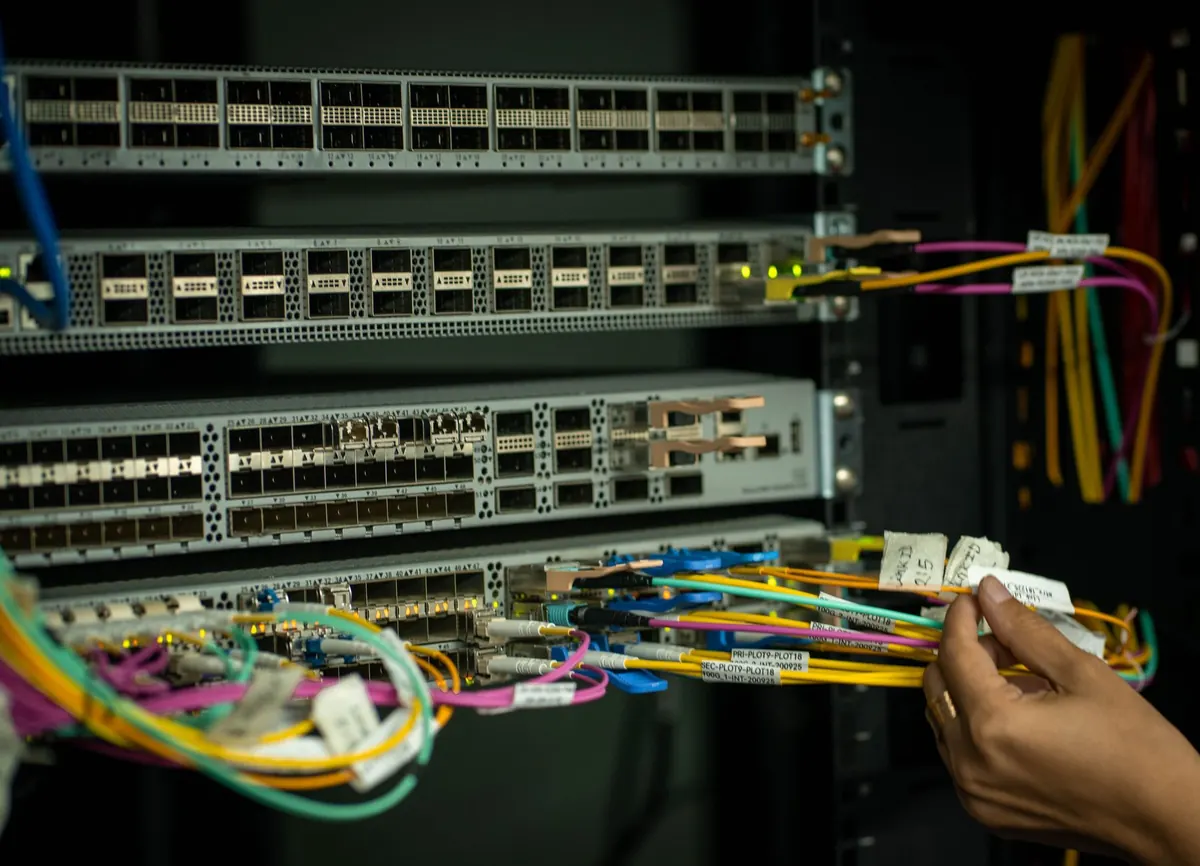
A switch gives you the ports. Look for gigabit or faster, enough ports for today plus a few spare, and PoE (Power over Ethernet) if you plan ceiling access points or cameras — it sends power down the same cable, which removes a lot of plug sockets from the equation. Unmanaged switches are cheap and silent. Managed switches cost more but let you separate traffic, which is worth it if you handle payments or customer data.
For cabling, run Cat6 or Cat6a, and insist on solid copper rather than copper-clad aluminium. Keep data cables away from mains power where you can, label both ends, and test every run before the ceiling goes back up. Leave a metre of slack at each end, and photograph the patch panel once it is tidy — you will thank yourself in two years.
4. Wi-Fi That Reaches Every Desk
One router in a cupboard rarely covers an office well. The better pattern is two or three ceiling-mounted access points, each connected by cable to the switch, sharing one network name so devices roam between them without dropping calls.
Placement matters more than power. Put access points in open corridors and meeting rooms, not behind filing cabinets. If you must extend coverage wirelessly, expect roughly half the speed and more dropouts — run the cable if there is any way to do it.
Set up two networks: one for staff and one for guests. Guests should reach the internet and nothing else. Your file server, printers and internal systems stay invisible to them. If you have cameras, smart TVs or other gadgets, consider a third network for those too.
5. Security Settings to Change Before Anyone Logs In
Take an hour on this. It is the difference between a network and an open door.
- Change every default admin password, including the switch and access points — not just the router.
- Update firmware on all devices, then check for updates quarterly.
- Use WPA2 or WPA3 with a long passphrase. Hiding the network name adds almost no protection.
- Turn off WPS and remote administration from the internet.
- Disable any feature you are not using — UPnP, guest access to the admin panel, unused ports.
- Give printers, cameras and the server fixed addresses so they do not move around.
- Export and store a backup of the router configuration somewhere safe.
One practical detail: many home routers use the 192.168.1.x range. If your office uses the same numbers, staff working from home over VPN may hit strange conflicts. Choosing something like 192.168.50.x avoids the clash.
6. A Sensible Build Order
- Confirm the internet line works, then set the provider's modem to bridge mode.
- Install the router and update its firmware before configuring anything else.
- Mount the switch and patch panel near the incoming line; connect the router to the switch.
- Run and test all cabling, label both ends, then plug in fixed devices.
- Mount access points and configure the staff and guest networks.
- Apply the security checklist above, then back up the configuration.
- Test from real desks: video call, print, open a shared file, walk between rooms without dropping.
7. Keep It Running
Once it is live, the work drops to about an hour a month. Check for firmware updates, glance at the router logs, confirm backups are actually completing, and keep a simple document listing every device, its address and its admin password — stored in a password manager rather than a spreadsheet on someone's desktop.
If your team grows past fifteen or twenty people, or you start handling card payments, health data or client files under a contract that mentions security, it is worth bringing in a professional to review the setup. A short consultation is far cheaper than rebuilding after an incident.
Until then, keep it simple, keep it labelled, and keep it boring.
Photo: Omar Ashraf / Pexels